
How to use new Gutenberg editor in Wordpress
New Gutenberg editor is a simple but feature-full release. New Editor is featuring a clean interface and also easy access tools around.
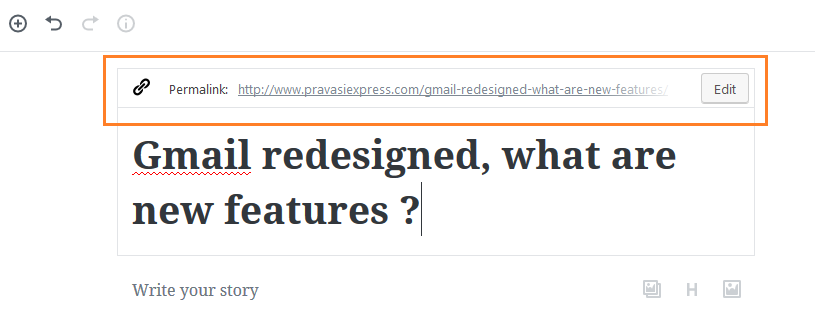
Start with Title
You can change the slug on top; which will be invisible by default. Whenever you click on Title again, the slug box will pop-up on top.
Add a header and format text
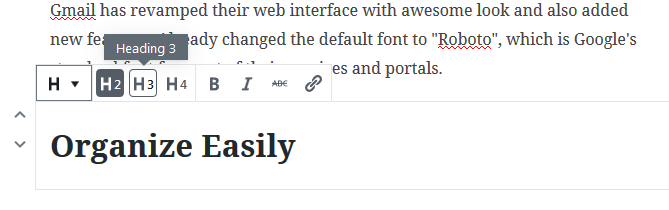
Just select the text or the block, you can see the format options right in the place; and no need to go on top. (You can fix this toolbar on the top by selecting in Gear icon)
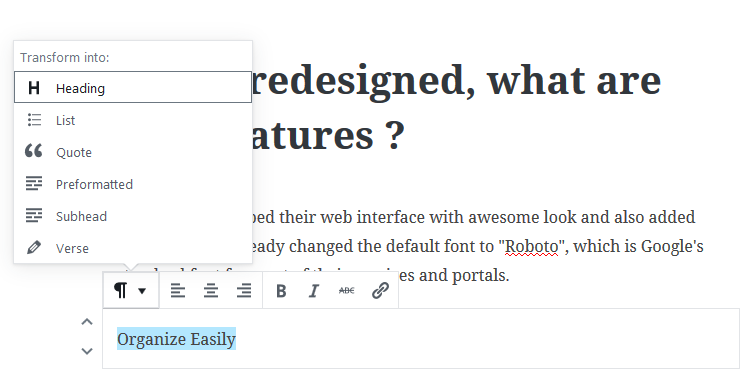
Then format the text or image as you need
Add an image
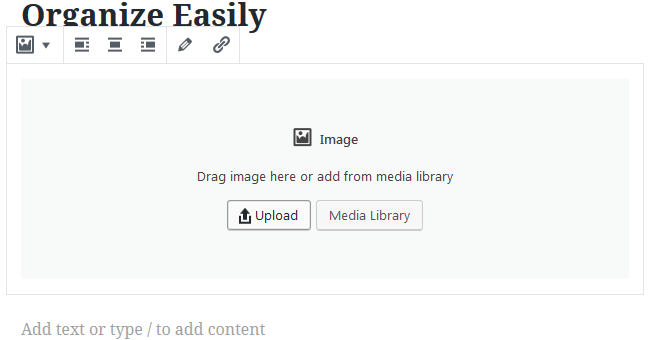
When you press enter from a block, it will create new block or new section. You can see image button on right side and just add as usual.

Browse or upload new image
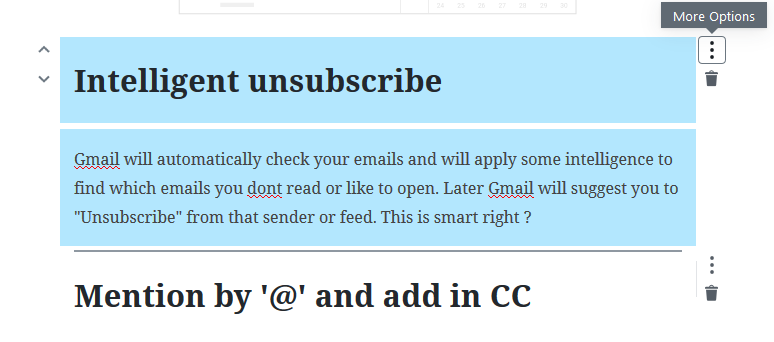
Select text or you can select as block
You can select some text or multiple blocks to move or copy.
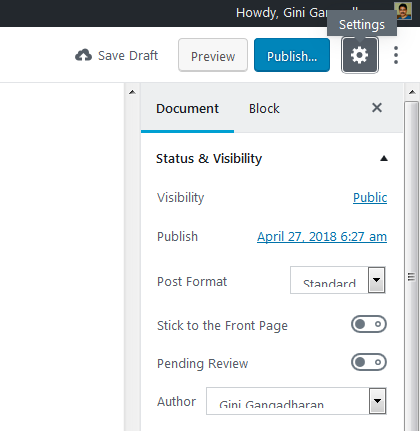
Show or Hide the Options on right side
By pressing the gear icon on right top, you can show or hide the options like Featured image, Author, Tags etc.
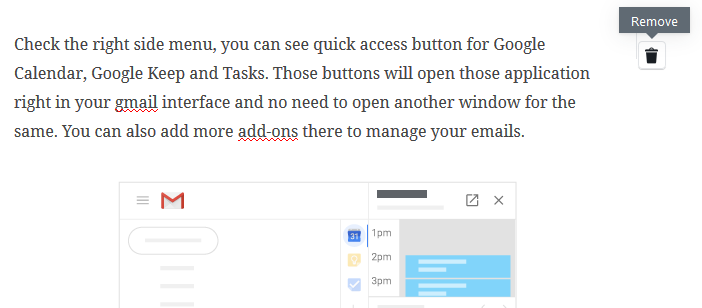
Delete text or Entire Block
You can delete entire block of text or images
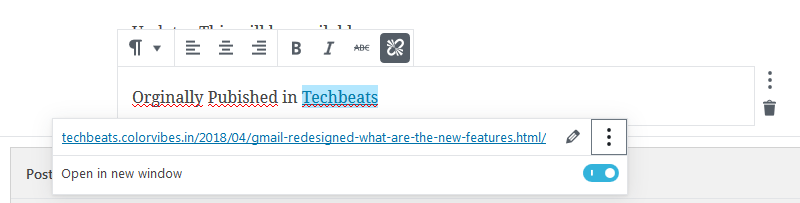
Add links and enable "Open in new Window"
Add link as normal; always enable "Open in new Window" for external links.
Drag and Drop blocks of text or images
You can drag and drop the blocks to different place very easily.
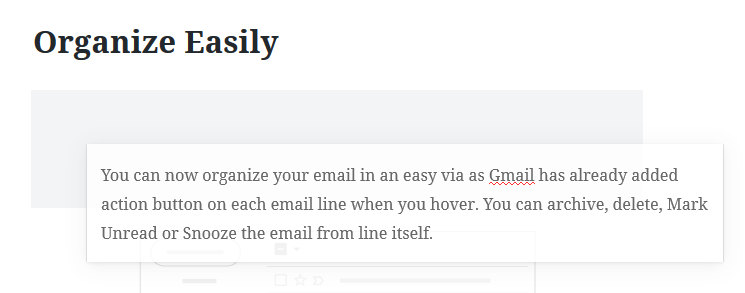
Find the details of article
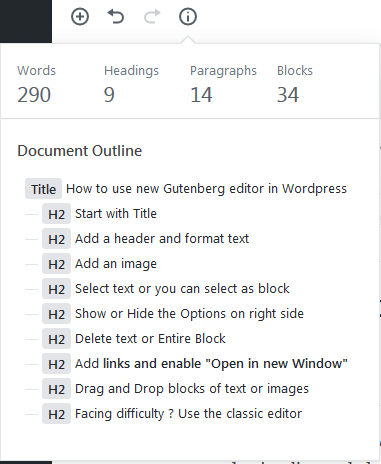
Facing difficulty ? Use the classic editor
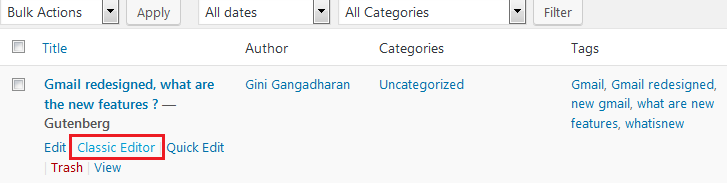
Still facing difficulty to work with new Gutenberg editor ? You have option to use classic editor as below. But I strictly recommend to use new editor since classic editor may remove at any time.
Still got issue ? Please let me know :)